User Guide for InsuraConnect

Table of contents
Introduction
Welcome to the InsuraConnect User Guide! This guide serves as a complete manual to every aspect of InsuraConnect, your streamlined conduit to peak productivity in the insurance sector. Eschewing the complexity of redundant features, InsuraConnect is forged from in-depth research to deliver a swift, efficient, and user-friendly experience for the modern insurance agent.
Refer to the Table of contents to find your answers as well as step-by-step instructions for all the features to be a master of InsuraConnect.
What it does
InsuraConnect is a desktop application tailored for managing client interactions and insurance policies. It is optimized for speed via a Command Line Interface (CLI), backed by the visual accessibility of a Graphical User Interface (GUI). For agents adept at typing, InsuraConnect enhances task execution, outpacing conventional GUI applications.
With InsuraConnect, you can swiftly access client information, manage policies, track meetings, and stay organized in a competitive landscape. Our goal is to transform your workflow into an efficient model of productivity.
This user guide provides the installation process, clear explanations for each command, step-by-step instructions, insightful examples and troubleshooting recommendations to ensure you harness the full potential of InsuraConnect. In addition, the quick start guide provides an end-to-end setup process to get started.
Target users
InsuraConnect is designed for insurance agents who desire the efficacy of CLI without relinquishing GUI advantages. It is an essential tool for those who manage a broad client base, track multiple insurance policies, organise meetings, and value the efficiency of their time and resources.
What can InsuraConnect do for you?
❓ What truly sets InsuraConnect apart? This is only the tip of the iceberg of the things you can do working with InsuraConnect.
Comprehensive Policy Management: Dive into the essence of each policy with InsuraConnect's in-depth tracking system. Visualize expiry dates, premiums, and detailed coverage information, all laid out for clear understanding and quick access.
Dynamic Policy Administration: Add zest to policy handling with agile tools that allow you to add, update, or remove policy details effortlessly. Maintain accurate client portfolios with just a few intuitive commands.
Streamlined Meeting Coordination: Command your schedule with robust scheduling capabilities. Organize, adjust, and cancel meetings with ease, enhanced by our integrated agenda setting and comprehensive note-taking tools.
Client Engagement Tracker: Keep your finger on the pulse of client relations. Monitor interactions and gauge policy engagement levels to ensure high client retention and satisfaction rates.
Proactive Meeting Reminders: Stay ahead of the game with proactive notifications for impending meetings, ensuring you're always prepared to seize every client engagement opportunity.
To explore more, visit the Features section for more advanced tips.
Quick start
Ensure you have Java
11or above installed in your Computer. You can download Java11for your system here.Download the latest
InsuraConnect.jarfrom here.Copy the file to the folder you want to use as the home folder for InsuraConnect.
Open a command terminal,
cdinto the folder you put the jar file in, and use thejava -jar InsuraConnect.jarcommand to run the application.A GUI similar to the image below should appear in a few seconds. Note how the app contains some sample data.
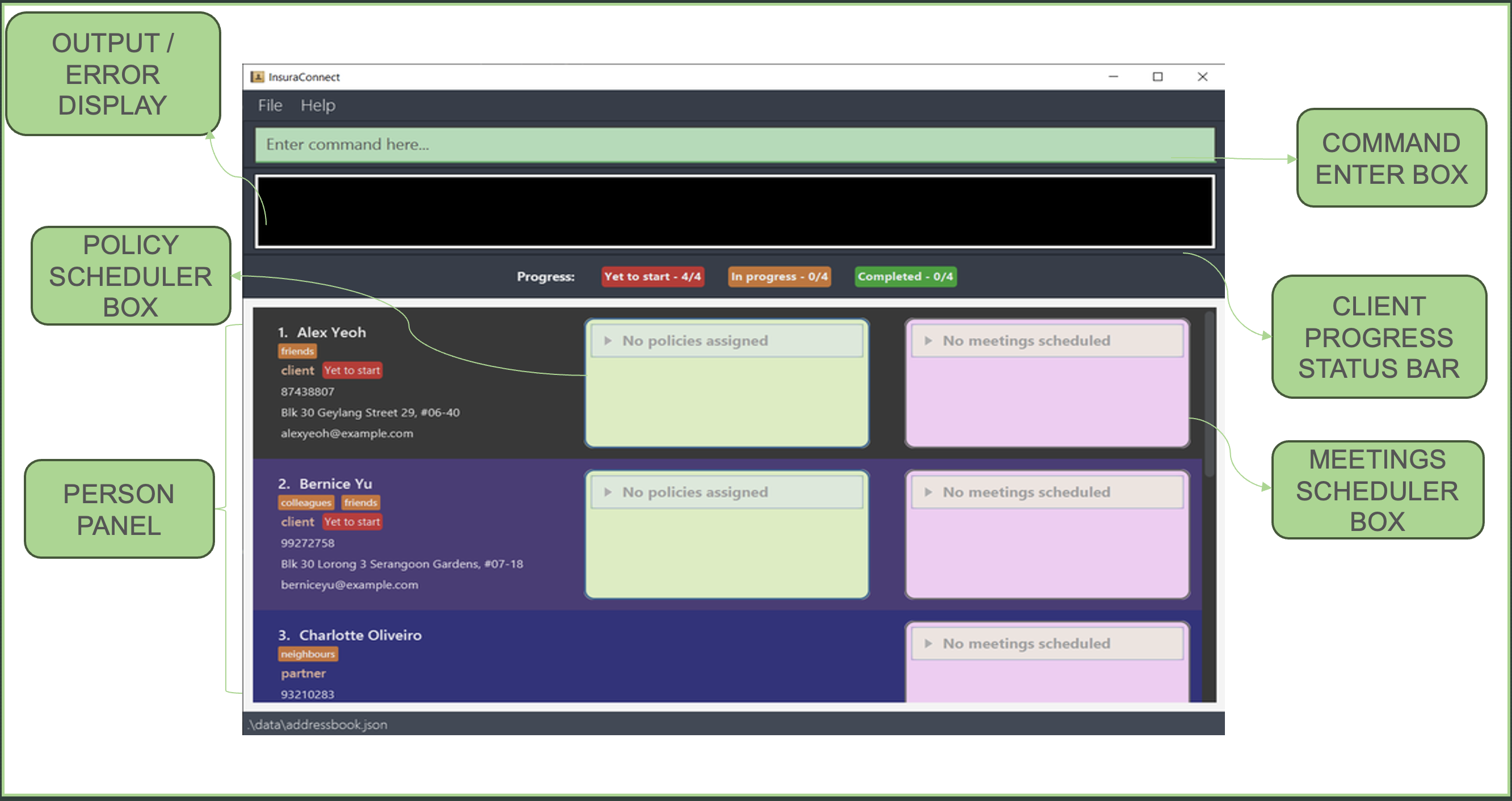
Fig 1: InsuraConnect's GUI
Type the command in the command box and press Enter to execute it. e.g. typing
helpand pressing Enter will open the help window.
Some example commands you can try:list: Lists all contacts.add n/John Doe p/98765432 e/johnd@example.com a/John street, block 123, #01-01 r/client: Adds a contact namedJohn Doeto InsuraConnect.delete 3: Deletes the 3rd contact shown in the current list.schedule 1 md/2024-05-05 mt/09:00 ma/Discuss health policy mdur/60: Schedules a meeting with the 1st contact in the current list at 5th May 2024 9am to discuss health policy.policy 1 po/Health policy ed/2029-06-06 pm/1000Adds a policy with the 1st contact in the current list with name of Health policy, expiry date on the 6th of June 2029, with a premium of 1000 SGD.exit: Exits the app.
Refer to the Features below for further details of each command.
Refer to the Command summary for a full list of the available commands
How to use this guide
The InsuraConnect User Guide is structured to help you navigate as easily as possible. You can use the Table of contents to navigate any section you want. Hyperlinks are also included that will take you to relevant sections or features. If you already an experienced user, you can use the Supported prefixes and Command summary sections for a quick overview.
In the Features section, each feature will contain:
- a short preface
- the command format
- details on its use
- guided examples
You can also find visuals that highlight how the features of InsuraConnect will look. They are located below the description of the feature and are labelled for your convenience.
This guide uses the following coloured icons and segments. They represent different information to help you better understand how to use InsuraConnect.
Tip: This indicates a helpful tip on how to utilise a particular feature of InsuraConnect.
Constraint: This indicates a constraint on the command format or feature of InsuraConnect.
Caution: This indicates a precaution that you should read carefully and remember when using InsuraConnect.
Before you dive into the features, read through the notes regarding InsuraConnect's command format.
Notes about the command format:
Words in
UPPER_CASEare the parameters for you to input.
Example: Inadd n/NAME,NAMEis a parameter which you can use asadd n/John Doe.Prefixes are in the form of a shortened word followed by a / such as
po/for policy ormd/for meeting date.
You can refer to the supported prefixes section for a full list of prefixes.Prefixes require a space before being used, such as
n/NAME e/EMAILrequiring a space betweenNAMEande/.Items in square brackets are optional.
Example: You can usen/NAME [t/TAG]asn/John Doe t/friendor asn/John Doe.You can use items with
… after them multiple times including zero times.
Example: You can use[t/TAG]…as(i.e. 0 times),t/friend, ort/friend t/family, etc.You can use parameters in any order.
Example: If the command specifiesn/NAME p/PHONE_NUMBER, you can also inputp/PHONE_NUMBER n/NAME.Extraneous parameters for commands that do not take in parameters (such as
help,list,exitandclear) will be ignored.
Example: If you input the commandhelp 123, it will be interpreted ashelp.If you are using a PDF version of this document, be careful when copying and pasting commands that span multiple lines as space characters surrounding line-breaks may be omitted when copied over to the application.
If you encounter any errors when using commands, the output/error display will highlight potential formatting mistakes in your command.
Features
Viewing help : help
Shows a message explaining how to access the help page.

Fig 2: Help Message
Format: help
Adding a person: add
Adds a person to InsuraConnect.
Format: add n/NAME p/PHONE_NUMBER e/EMAIL a/ADDRESS r/RELATIONSHIP [t/TAG]…
Tip: A person can have any number of tags (including 0) and the tag names should not have whitespaces in them.
Constraints:
- Names can only consist of alphanumeric characters. Names that include special characters such as
s/o, are currently not allowed. However, it is one of our considerations in our future planned enhancements and for now, a current workaround would be directly using "son of" or "so" instead. - Currently, we perform checks for duplicate contacts by comparing names, so we are unable to have multiple contacts with the same name. However, we plan to include more stringent validity checks in the future planned enhancements.
- Phone numbers can only consist of numbers. Phone numbers that start with a + sign are currently not allowed. This is a consideration for our future planned enhancements.
- Email has to be of the format local-part@domain
and adhere to the following constraints:
- The local-part should only contain alphanumeric characters and these special characters, excluding the parentheses, (+_.-). The local-part may not start or end with any special characters.
- This is followed by a '@' and then a domain name. The domain name is made up of domain labels separated by periods.
- The domain name must:
- end with a domain label at least 2 characters long
- have each domain label start and end with alphanumeric characters
- have each domain label consist of alphanumeric characters, separated only by hyphens, if any.
- The relationship field can only be
clientorpartner.
Examples:
add n/John Doe p/98765432 e/johnd@example.com a/John street, block 123, #01-01 r/clientadds a client with the respective details to InsuraConnect.add n/Betsy Crowe t/friend e/betsycrowe@example.com a/Kent Ridge p/1234567 r/partner t/oweMoneyadds a partner with the respective details to InsuraConnect.
The following images show the InsuraConnect UI before and after executing the command add n/Betsy Crowe t/friend e/betsycrowe@example.com a/Kent Ridge p/1234567 r/partner t/oweMoney.
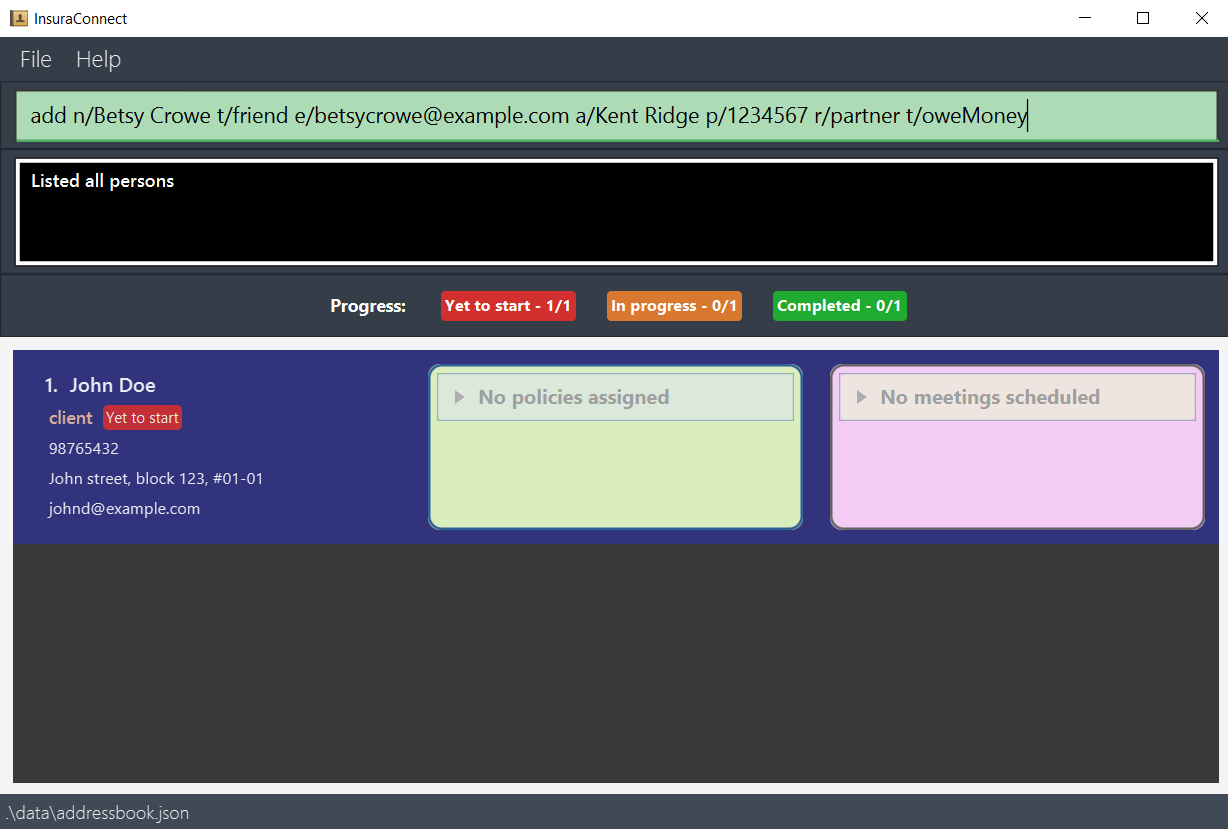
Fig 3: Before adding a person
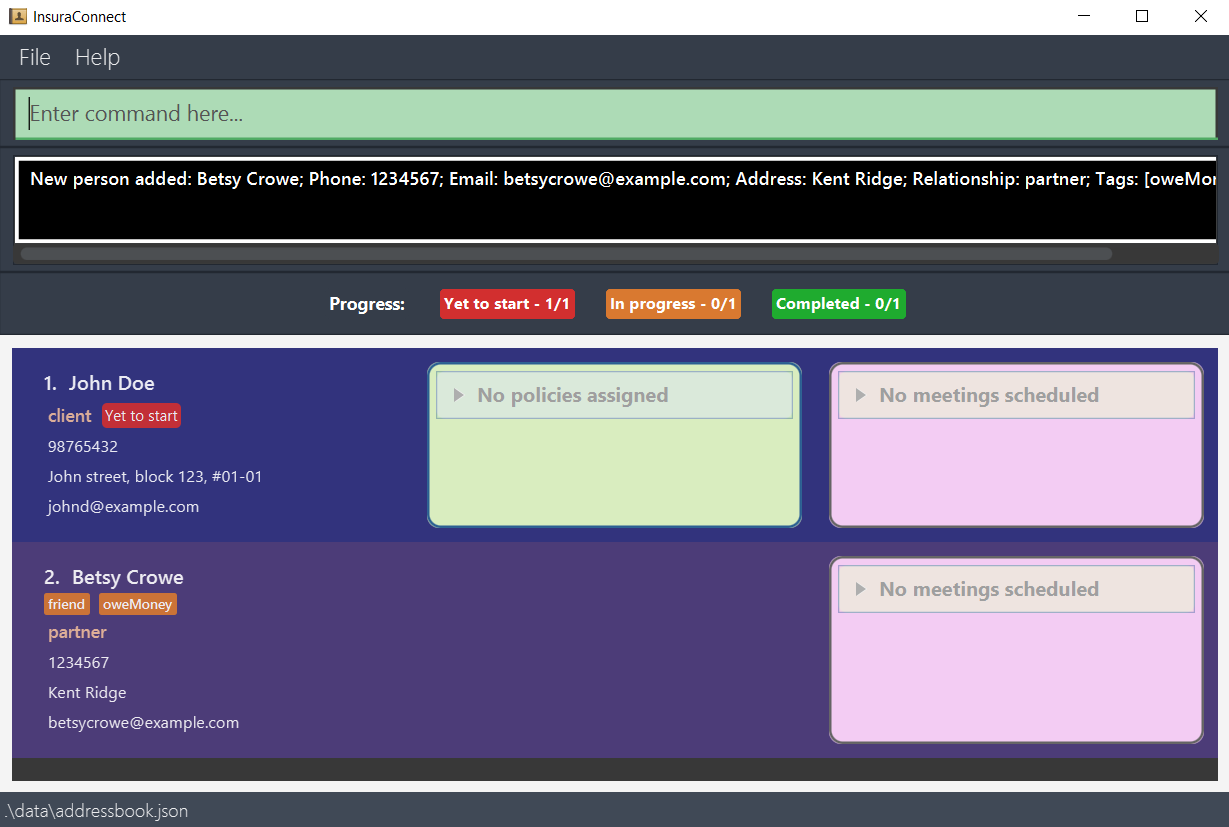
Fig 4: Outcome after adding a person
Listing all persons : list
Shows a list of all persons in InsuraConnect.
Format: list
Editing a person : edit
Edits an existing person in InsuraConnect.
Format: edit INDEX [n/NAME] [p/PHONE] [e/EMAIL] [a/ADDRESS] [t/TAG]…
- Refer to the above add section for constraints for the values.
- Edits the person at the specified
INDEX. The index refers to the index number shown in the displayed person list. The index must be a positive integer 1, 2, 3, … - At least one of the optional fields must be provided.
- Existing values will be updated to the input values.
- Editing the relationship is not allowed.
- Editing the policy and meeting fields will be through other commands, policy and reschedule respectively.
- When editing tags, the existing tags of the person will be removed i.e. adding of tags is not cumulative.
- You can remove all the person’s tags by typing
t/without specifying any tags after it.
Examples:
edit 1 p/91234567 e/alexyeoh1234@example.comedits the phone number and email address of the 1st person to be91234567andjohndoe@example.comrespectively.edit 2 n/Betsy Crower t/edits the name of the 2nd person to beBetsy Crowerand clears all existing tags.
The following images show the InsuraConnect UI before and after executing the command edit 1 p/91234567 e/alexyeoh1234@example.com.
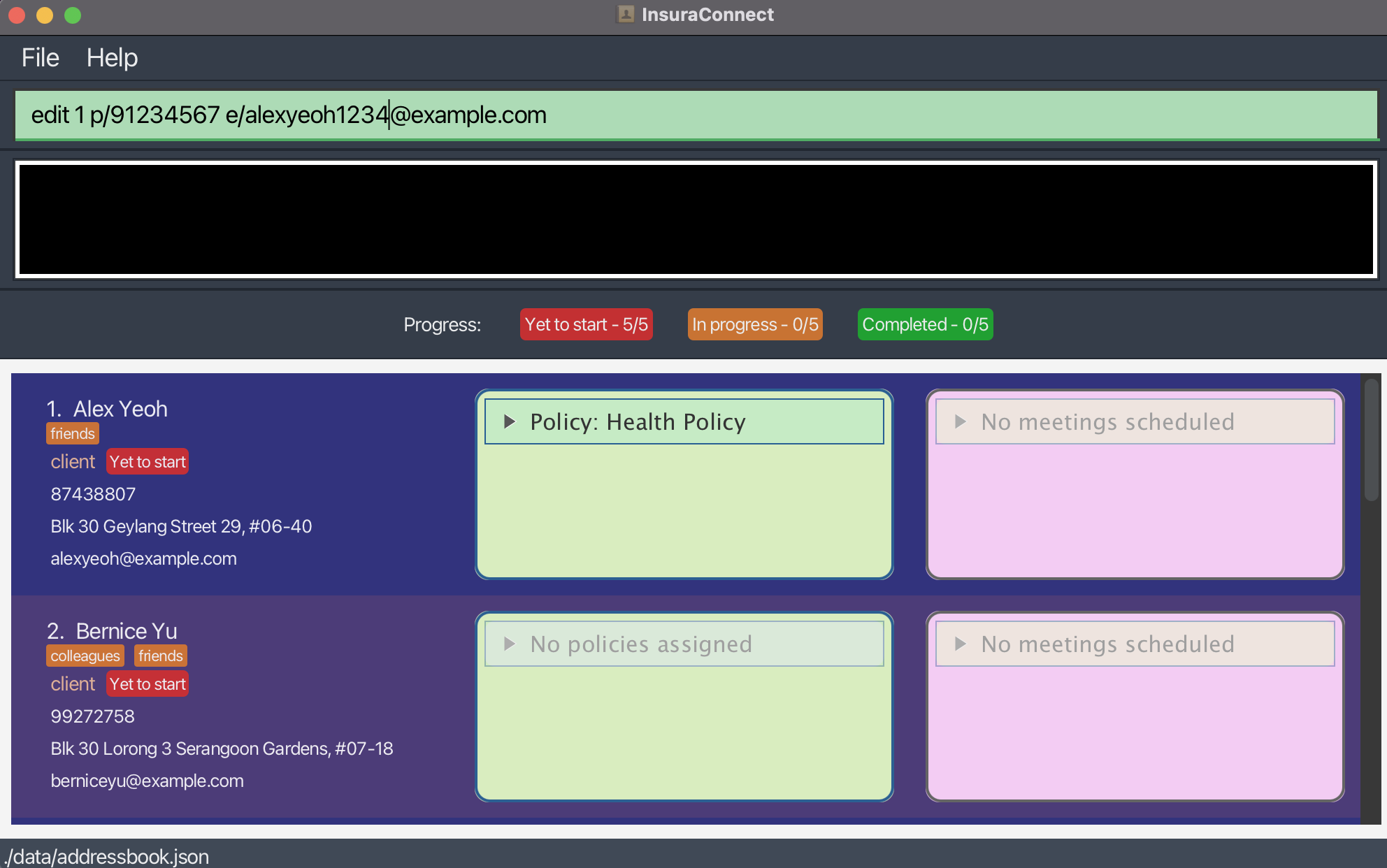
Fig 5: Before editing Alex's email and phone number
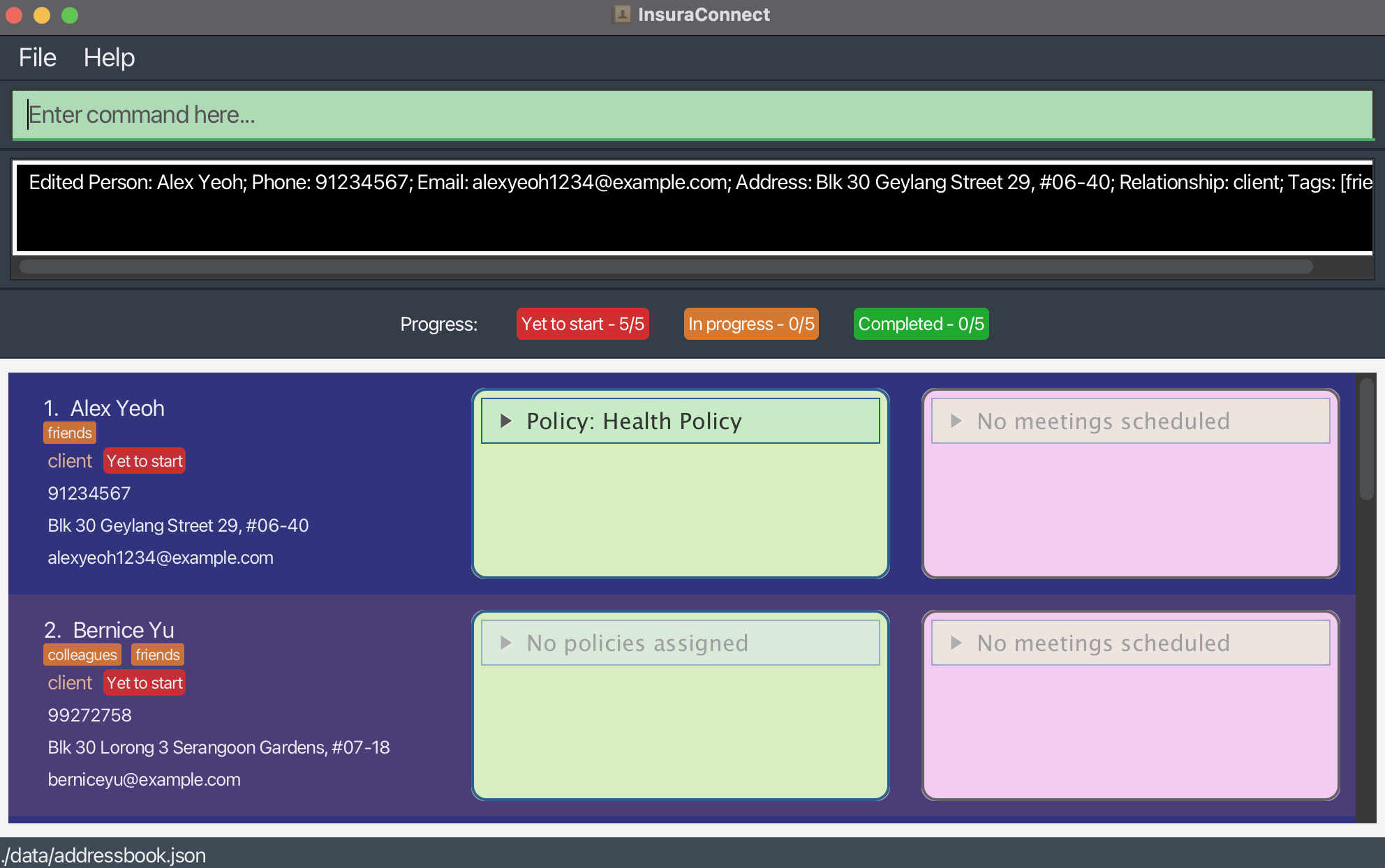
Fig 6: After editing Alex's email and phone number
The following images show the InsuraConnect UI before and after executing the command edit 2 n/Betsy Crower t/.
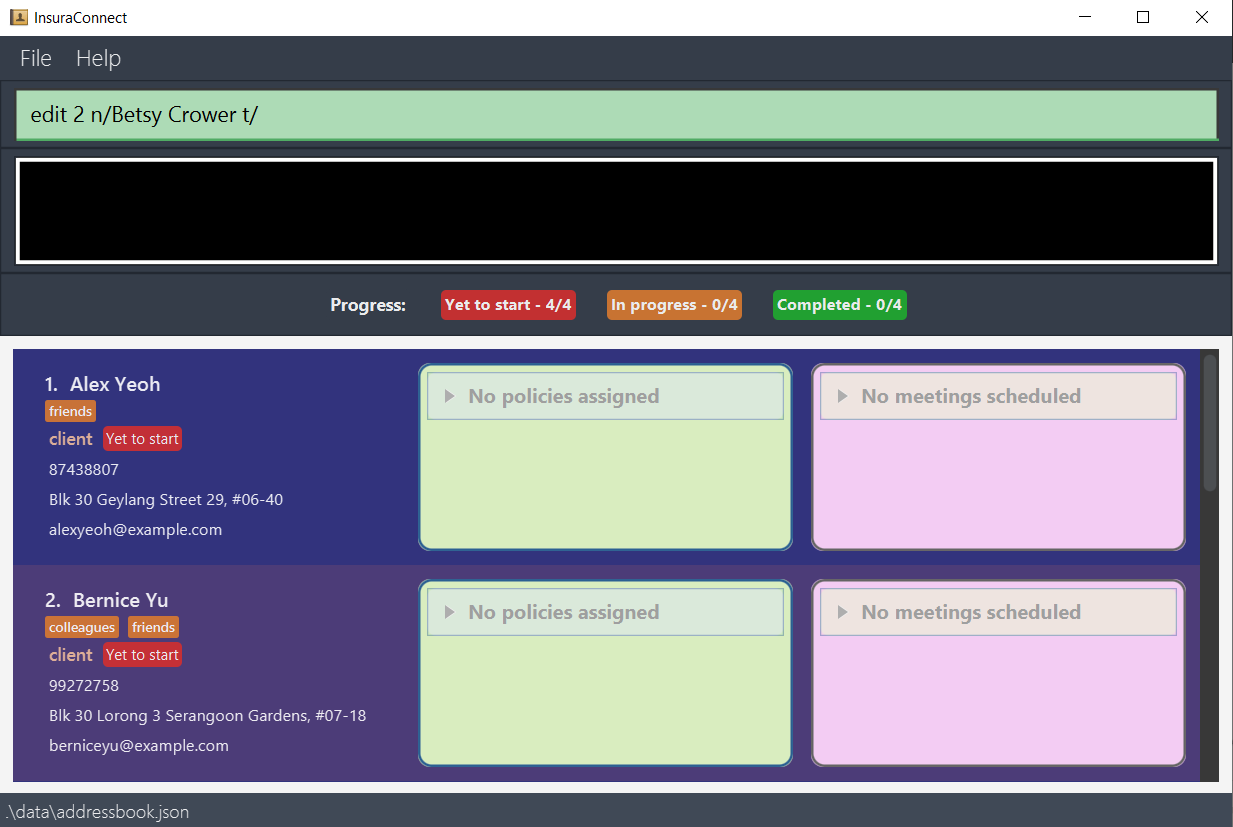
Fig 7: Before editing the 2nd person
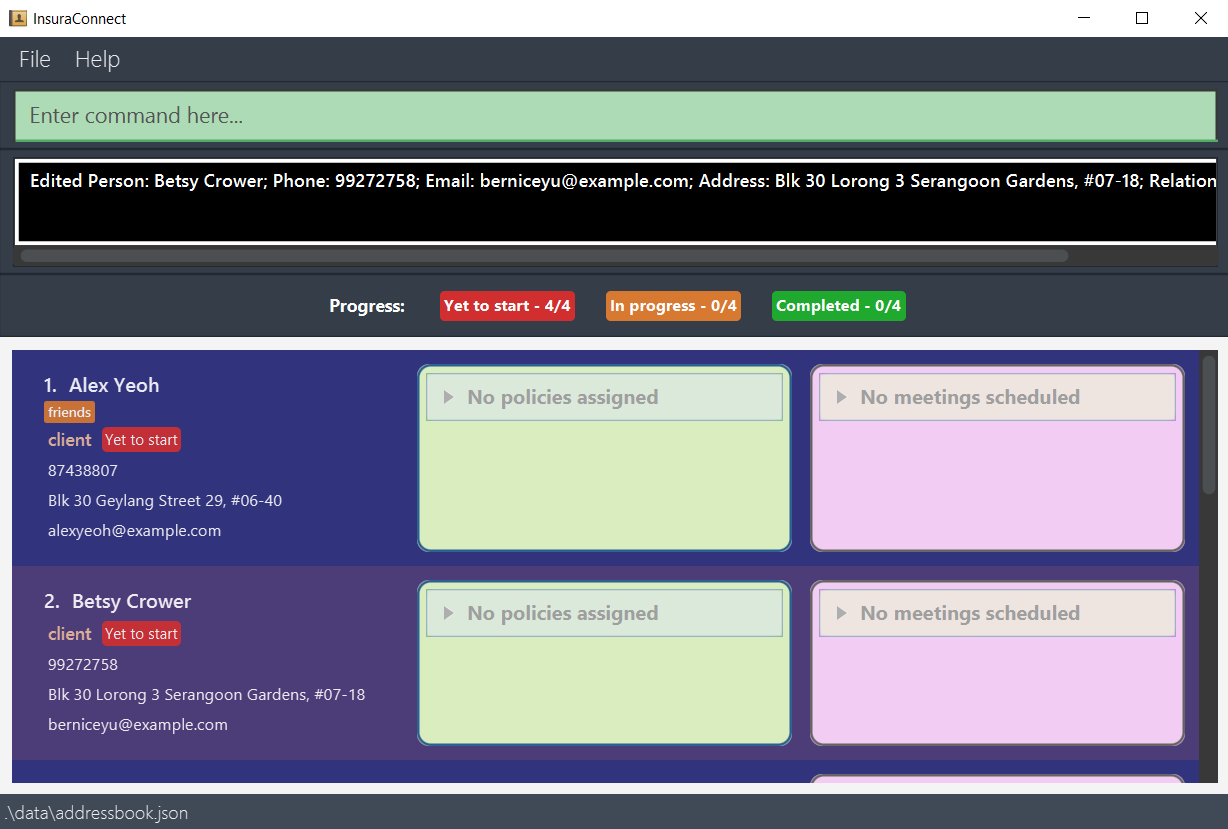
Fig 8: Outcome after editing the 2nd person
Locating persons by name, relationship, tag, policy: find
Finds persons whose details contain any of the given keywords.
Format: find [n/NAME]... [r/RELATIONSHIP]... [t/TAG]... [po/POLICY]...
- The search is case-insensitive. e.g
hanswill matchHans. - Keywords containing white spaces at the beginning or end are allowed. e.g:
Hans,client. - You can search by name, relationship, tags or policy.
- Persons matching at least one keyword in any attribute will be returned (i.e.
ORsearch). e.g. find n/Hans n/Bo r/partner will returnHans Gruber,Bo Yangand all person who have relationshippartner.
Constraints:
- The keywords cannot be empty e.g:
find n/. - The keywords (
NAME,RELATIONSHIP,TAG,POLICY) cannot contain spaces between words e.g:Hans Bo,owe moneyare not allowed. - Need to include at least one prefix with a keyword.
- Only full words will be matched e.g.
Hanwill not matchHans.
Examples:
find n/ JohnreturnsjohnandJohn Doefind r/partnerretrieves all the partners listed in the contact list.
The following images show the InsuraConnect UI after executing the command find n/Alex n/David.
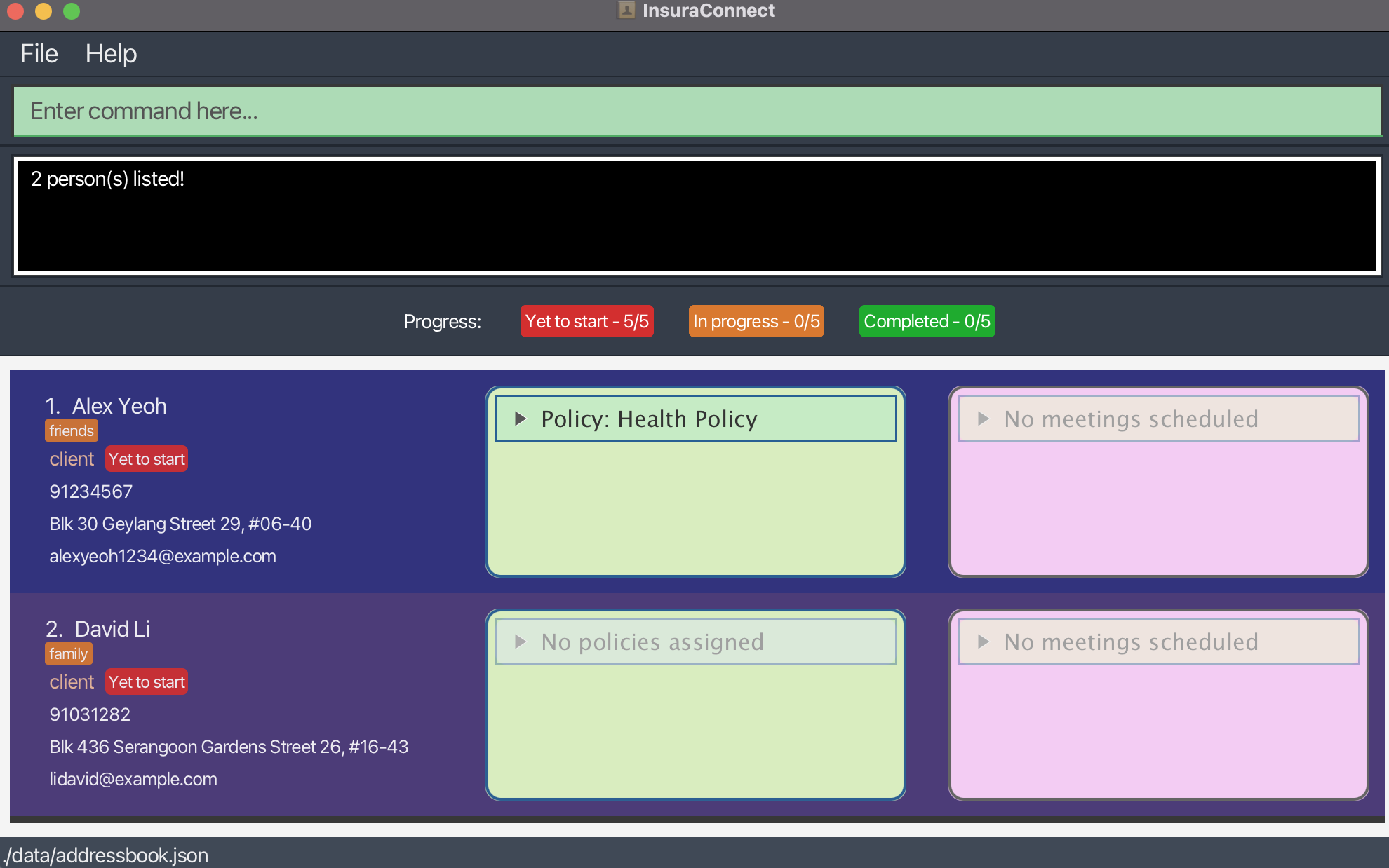
Fig 9: Outcome from finding Alex and David
Deleting a person : delete
Deletes the specified person from InsuraConnect.
Format: delete INDEX
- Deletes the person at the specified
INDEX. - The index refers to the index number shown in the displayed person list.
- The index must be a positive integer 1, 2, 3, …
Examples:
listfollowed bydelete 2deletes the 2nd person in InsuraConnect.find Betsyfollowed bydelete 1deletes the 1st person in the results of thefindcommand.
Policy
Constraints:
- Format of the expiry date is
dd-mm-yyyye.g.:31-12-2025and it should not be a past date. - Value of the premium should be larger than 0.
- The maximum number of policies per person is 5.
- Only clients can be assigned a policy. Attempts to assign a policy to a partner will be denied.
Adding a policy to a client: policy
Format: policy INDEX po/POLICY_NAME [ed/EXPIRY_DATE] [pm/PREMIUM]
- Assigns a policy to the client at the specified
INDEX. The index refers to the index number shown in the displayed person list. The index must be a positive integer 1, 2, 3, …
Examples: policy 1 po/Health Policy ed/01-01-2030 pm/500000 adds a new policy to the 1st person.
The following images show the InsuraConnect UI before and after executing the command policy 1 po/Health Policy ed/01-01-2030 pm/500000.
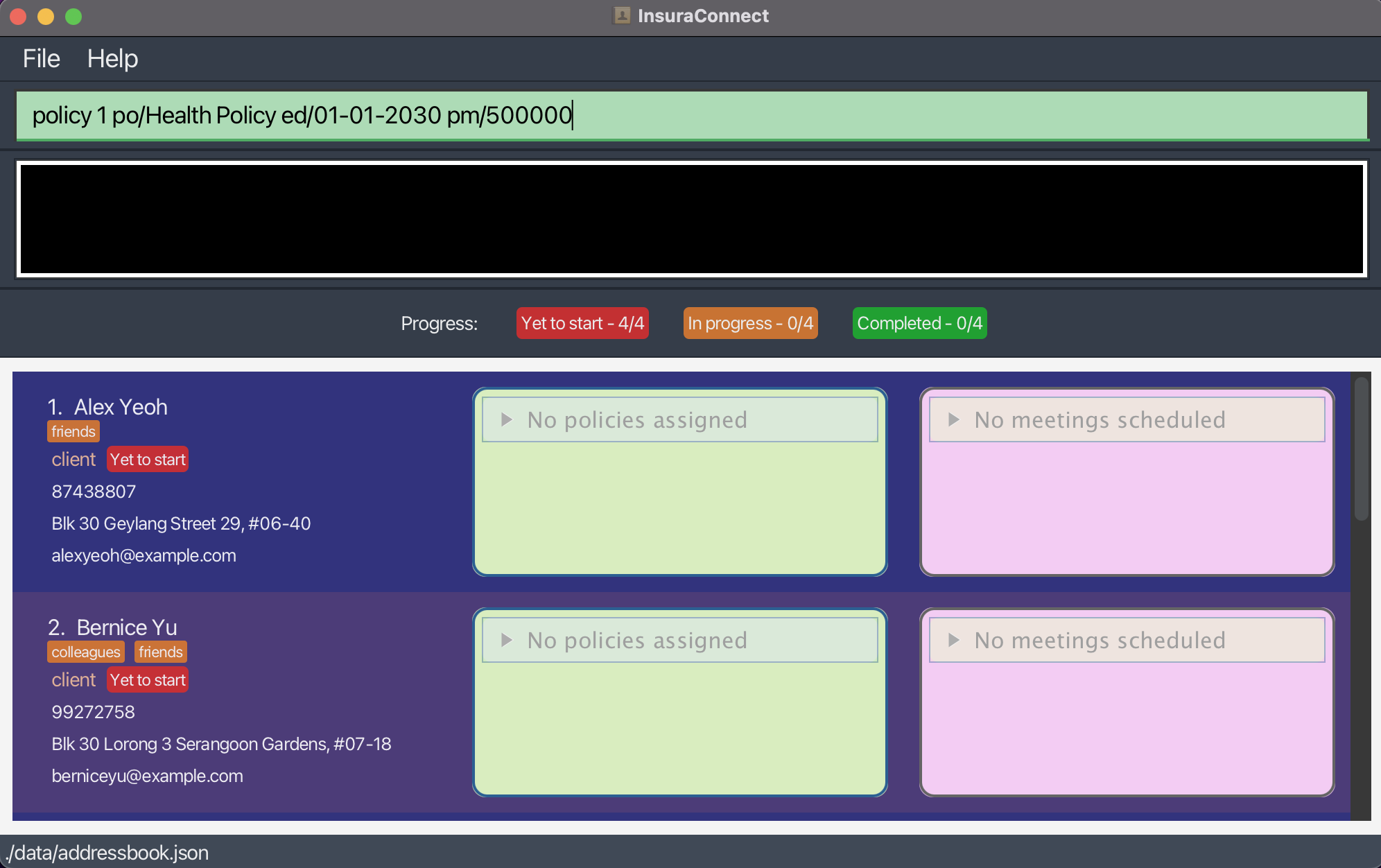
Fig 10: Before adding a policy
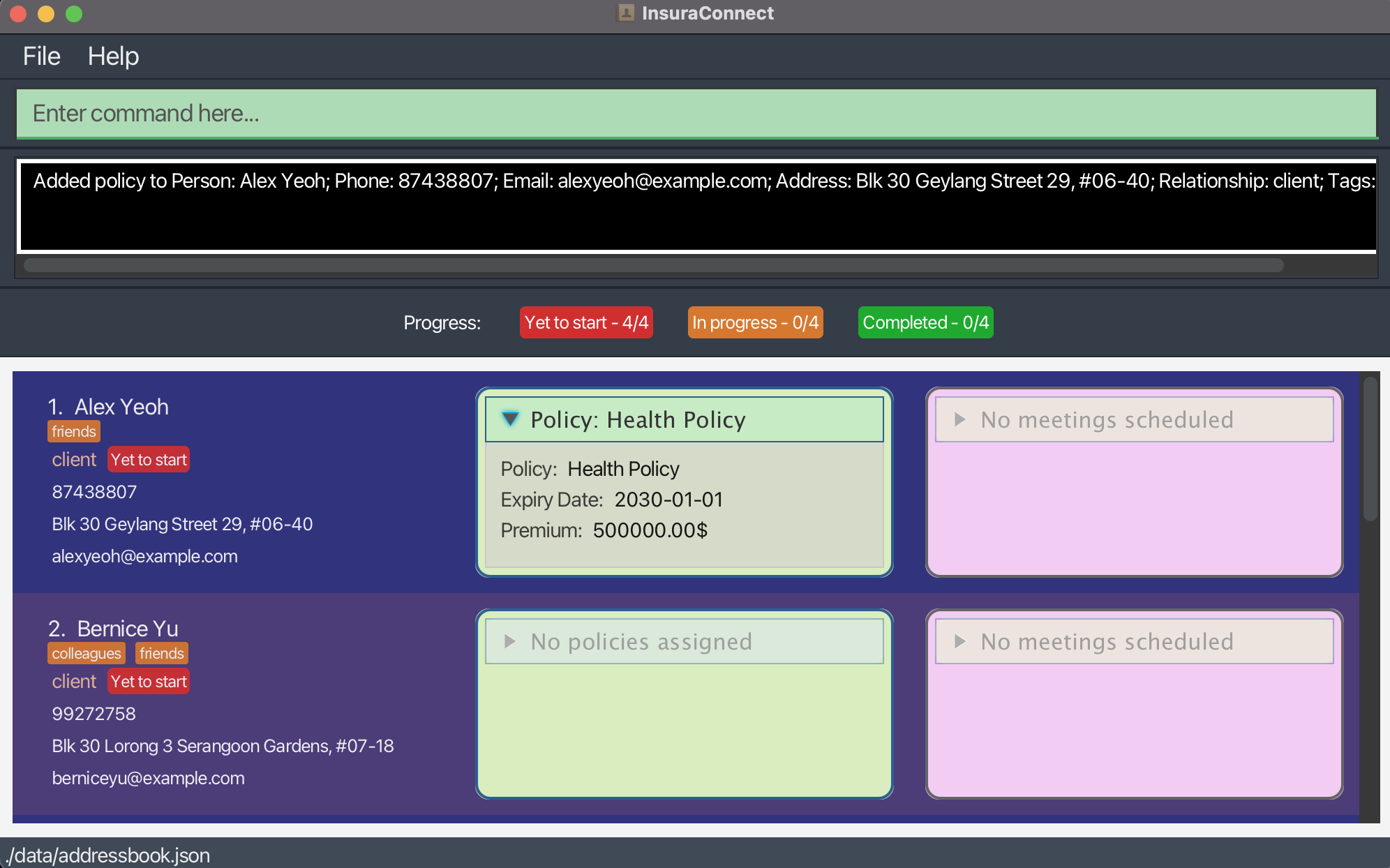
Fig 11: After adding a policy to the 1st person
Editing a policy of a client: policy
Format: policy INDEX pi/POLICY_INDEX po/POLICY_NAME [ed/EXPIRY_DATE] [pm/PREMIUM]
- Edits a policy assigned to the client at the specified
INDEXwith a specifiedPOLICY_INDEX. Policy index refers to the index number shown in the person's displayed policy list. Both indices must be positive integer 1, 2, 3, …
Examples: policy 1 pi/2 po/Travel Policy ed/01-01-2025 pm/2000 edits the 1st person's 2nd policy.
The following images show the InsuraConnect UI before and after executing the command policy 1 pi/2 po/Travel Policy ed/01-01-2025 pm/2000.
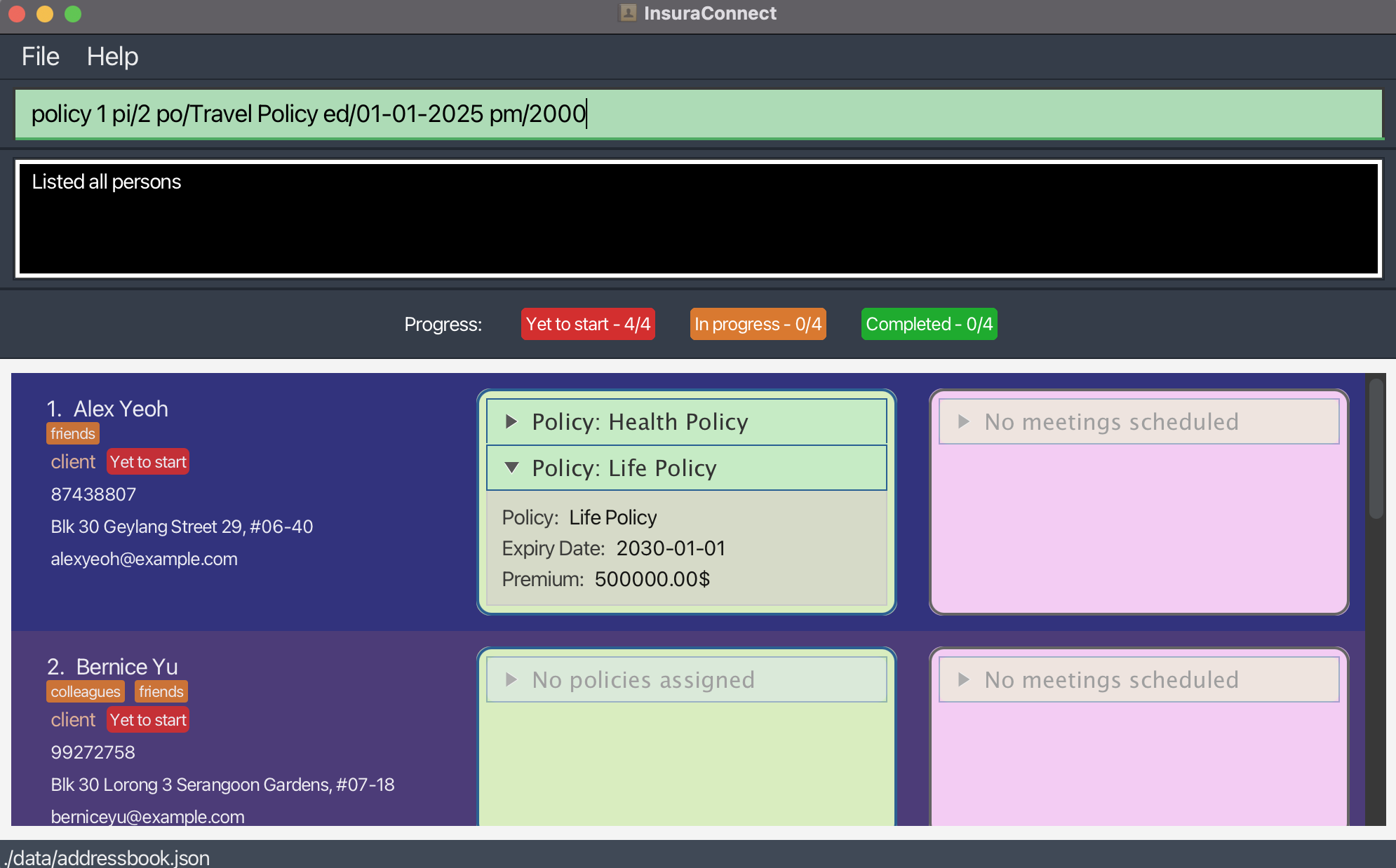
Fig 12: Before editing the policy
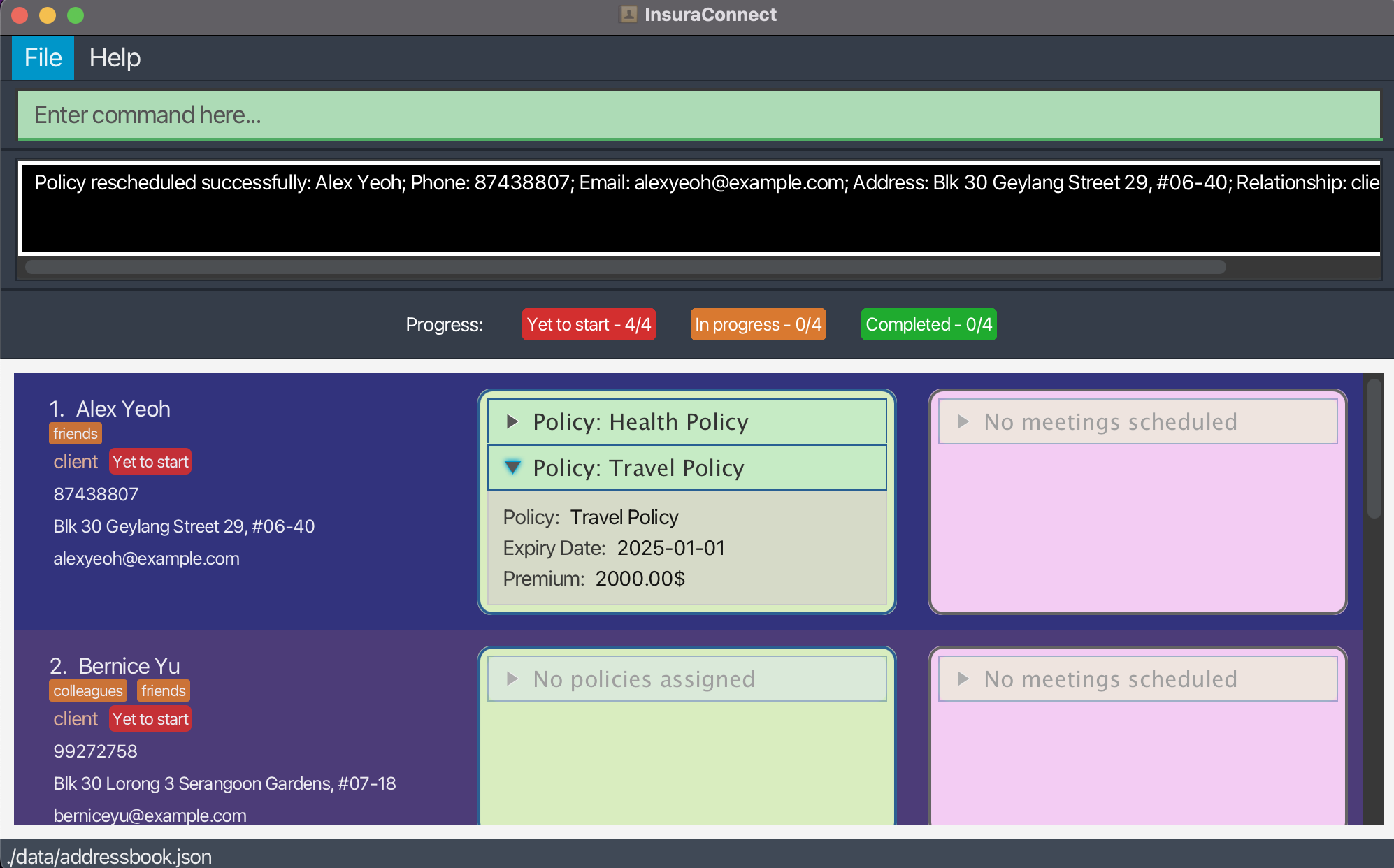
Fig 13: After editing the 2nd policy of the 1st person
Deleting a policy from a client: policy
Format: policy INDEX pi/POLICY_INDEX po/
- Deletes a policy assigned to the client at the specified
INDEXwith a specifiedPOLICY_INDEX. Both indices must be positive integer 1, 2, 3, … - Leave the
POLICY_NAMEblank to remove a particular policy from a particular client. - Note that any information provided after
po/will be ignored and the policy will still be deleted, e.g.,policy 1 pi/2 po/ ed/01-01-2025 pm/2000will still delete the 1st person's 2nd policy.
Examples: policy 1 pi/2 po/ deletes the 1st person's 2nd policy.
The following images show the InsuraConnect UI before and after executing the command policy 1 pi/2 po/.
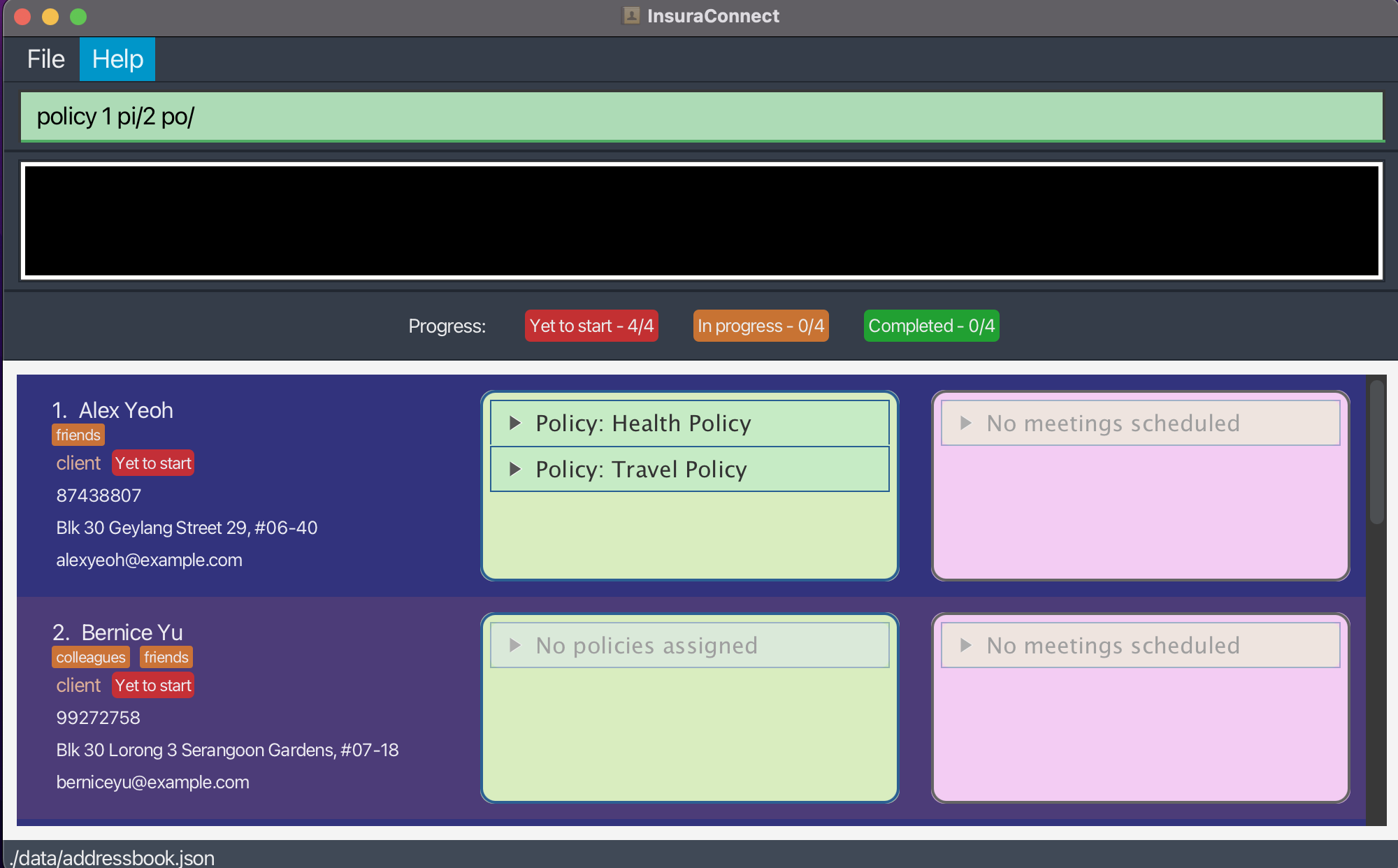
Fig 14: Before deleting the policy
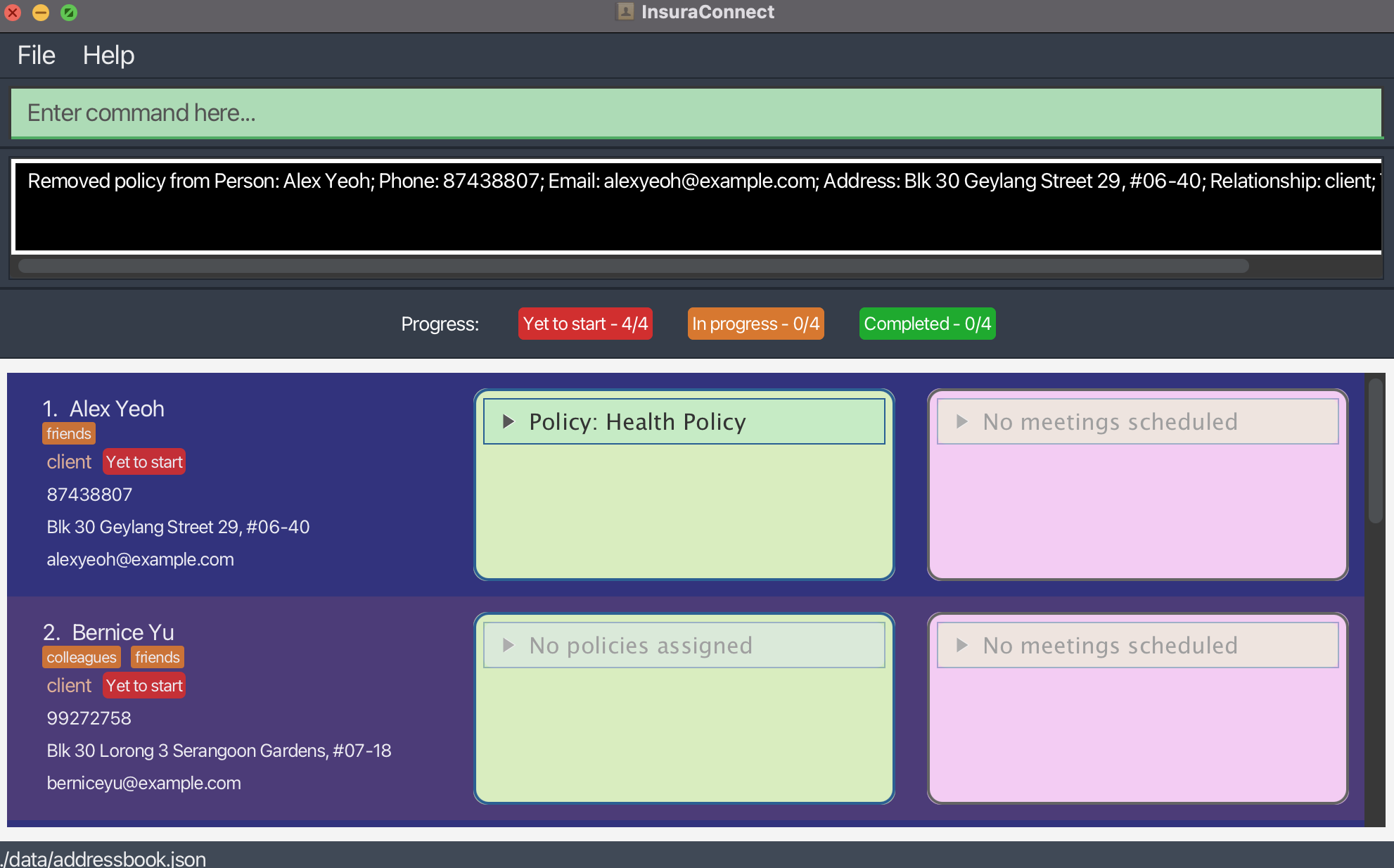
Fig 15: After deleting the 2nd policy of the 1st person
Meeting
Constraints:
- Meeting date and time must not be in the past, or after 1 year in the future
- Meeting date and time and duration must not overlap with previous meeting dates and times and duration
- There should not be more than 5 meetings for any clients
- Multiple classical date formats are accepted for further convenience as listed below with examples for
DATE:- yyyy-mm-dd i.e. 2024-12-30
- yyyy mm dd i.e. 2024 12 30
- dd mm yyyy i.e. 30 12 2024
- dd-mm-yyyy i.e. 30-12-2024
- Days of week are also accepted for dates for even more convenience
- Examples: Mon or Monday (first letter needs to be capitalised)
- This chooses the nearest next occurrence of the day i.e
current day and time is Monday 05:00, selecting Mon for
DATEand 04:59 forTIMEwill choose next weeks' monday while choosing 05:01 forTIMEinstead will choose the current monday at 05:01.
Scheduling a meeting with a person: schedule
Schedules a meeting with a person with an agenda and duration with optional notes
Format: schedule INDEX md/DATE mt/TIME mdur/DURATION ma/AGENDA mn/[NOTES]
- Schedules meeting with a person at the specified
INDEX. The index refers to the index number shown in the displayed persons list. - Meeting notes are optional and can be used to represent any additional information that might be useful for the meeting.
- You can schedule multiple meetings as well, further details are included below
Examples:
schedule 1 md/09-09-2024 mt/09:00 mdur/60 ma/discuss health policy mn/urgentschedule 1 md/01-09-2024 mt/13:00 mdur/60 ma/discuss vehicle policy mn/urgent
The following images show the InsuraConnect UI after executing two example commands above consecutively.
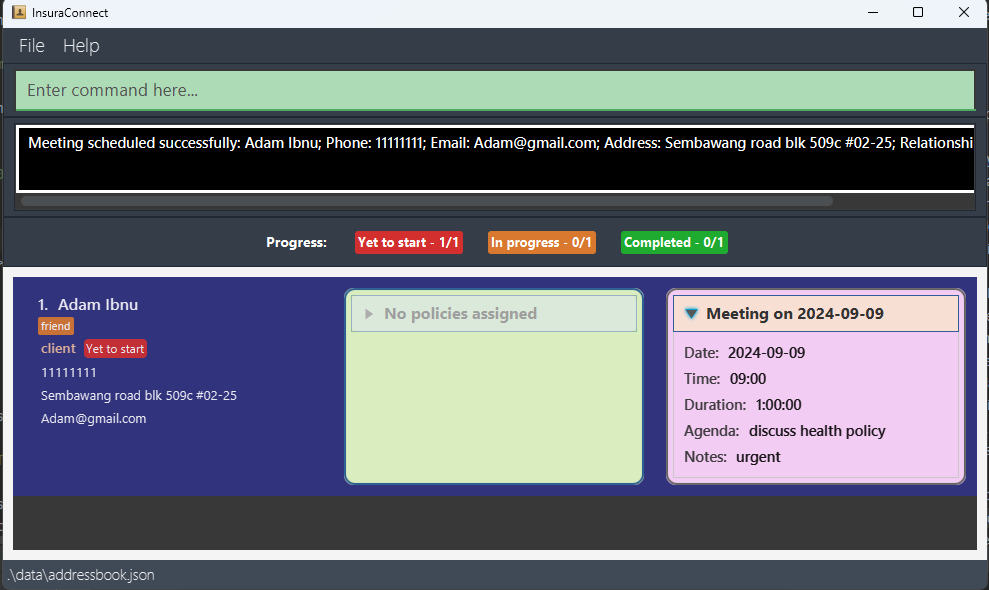
Fig 16: Schedule meeting at 9am 9th Sept 2024
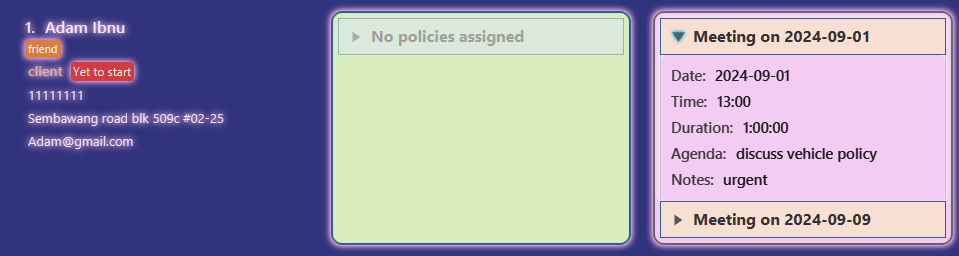
Fig 17: Schedule another meeting at 1pm 1st Sept 2024
Rescheduling a meeting with a person: reschedule
Reschedules a meeting with a person
Format: reschedule INDEX mi/MEETING_INDEX md/DATE mt/TIME
- Reschedules meeting with a person at the specified
INDEX. The index is the same as the above for schedule. - Selects a meeting from the list of meetings using the
MEETING_INDEX.
Examples: reschedule 1 mi/2 md/05-09-2024 mt/17:00
The following images show the InsuraConnect UI after executing the example command above from Fig 17.
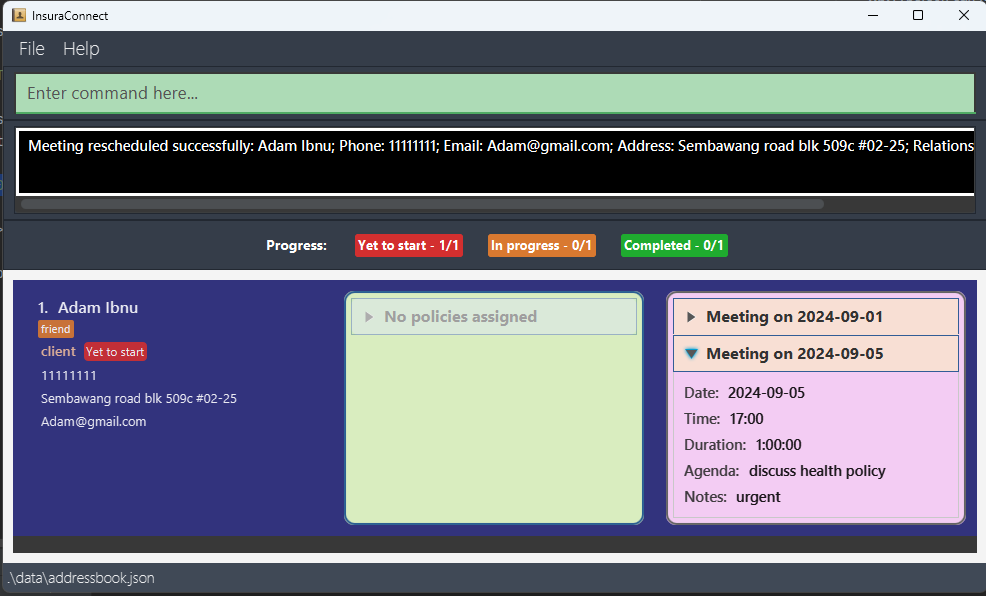
Fig 18: Reschedule meeting from 9am 9th Sept 2024 to 5pm 5th Sept 2024
Cancelling a meeting with a person: cancel
Cancels a meeting with a person
Format: cancel INDEX mi/MEETING_INDEX
INDEXandMEETING_INDEXis the same as the above for reschedule
Examples: cancel 1 mi/1
The following image shows the InsuraConnect UI after executing the example command above following the commands above in reschedule that resulted in Fig 18.
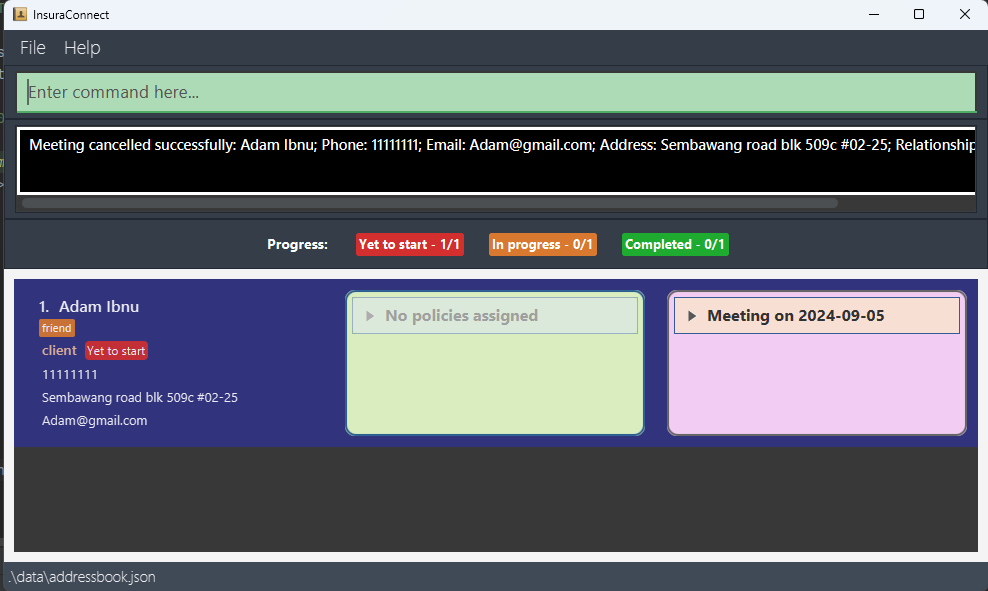
Fig 19: Cancel meeting at 1pm 1st Sept 2024
Managing Meetings
Meeting Scheduling and Rescheduling
Meetings are automatically sorted by their scheduled dates and times. When multiple meetings are scheduled for a client, InsuraConnect will organize them in ascending order, showing the earliest upcoming meeting at the top. This feature allows insurance agents to quickly glance at their schedule and prioritize upcoming meetings.
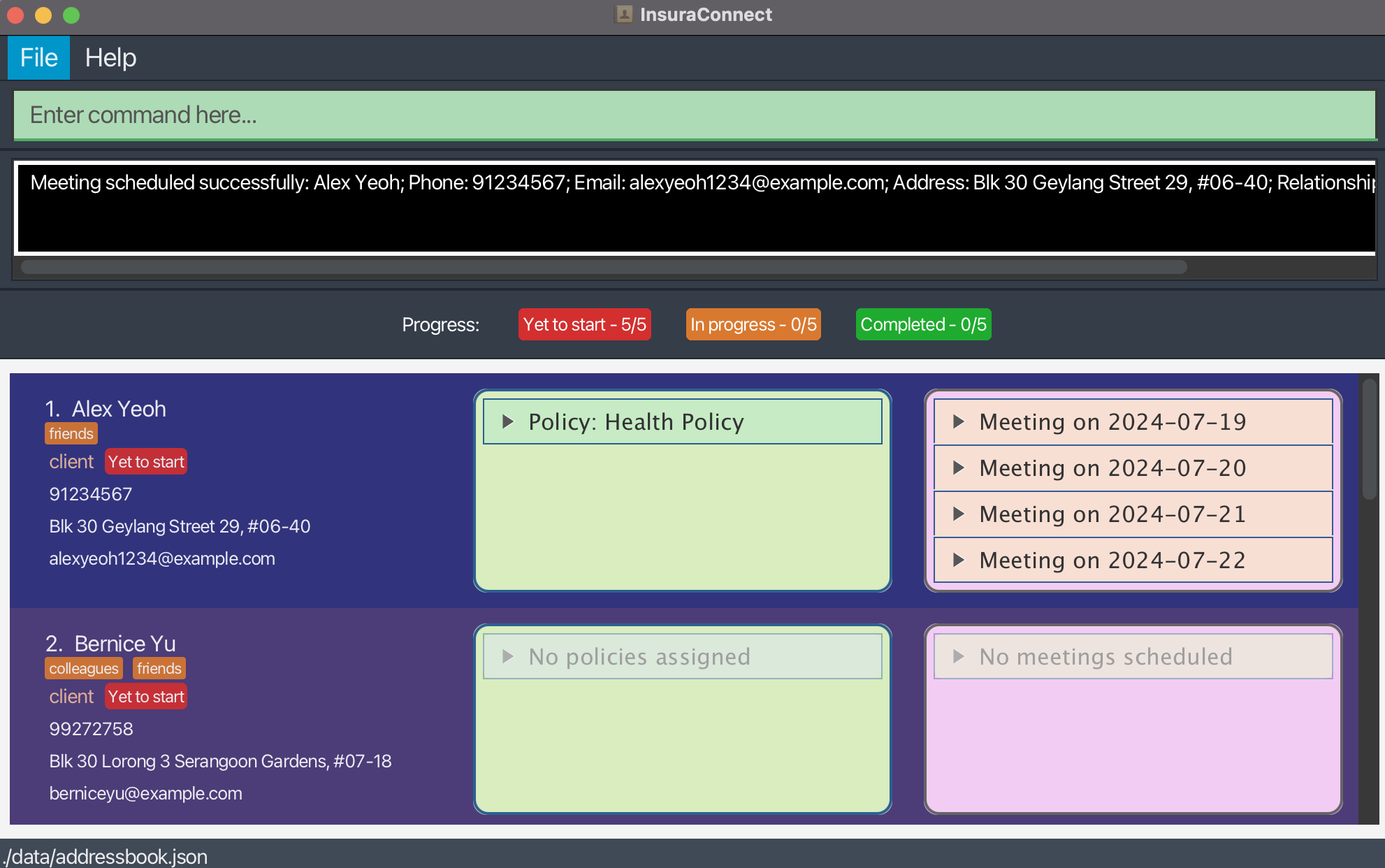
Fig 20: Meetings for Alex Yeoh displayed from earliest to latest
Automatic Purging of Expired Meetings
To ensure the schedule remains current and manageable, InsuraConnect automatically purges past meetings. Once a meeting's end time has passed, it will be removed from the system during the next refresh cycle. This helps to maintain an up-to-date schedule for users, focusing only on relevant future engagements.
Sorting Clients/Partners by Earliest Meeting
Clients and partners are sorted in the user interface according to the time of their earliest scheduled meeting. This sorting mechanism places those individuals with the most imminent meetings at the top of the list, allowing for efficient time management and planning. Should there be no scheduled meetings for a client or partner, they will be positioned in the list based on the default sorting criteria.
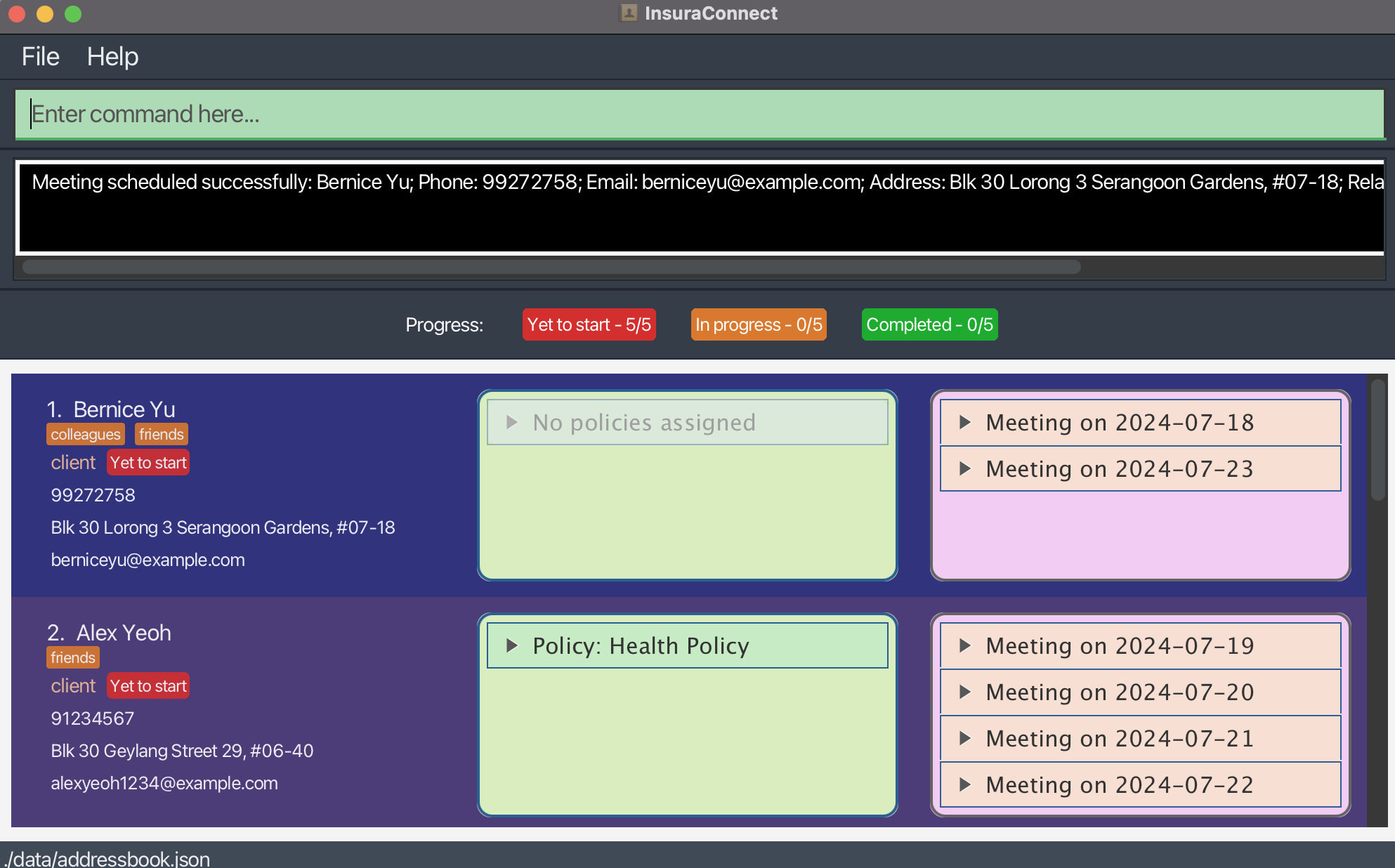
Fig 21: Client/Partners sorted by earliest meeting scheduled with insurance agent
Changing a client's status: status
Changes a client's status by one level to reflect the progress with that client. In increasing order, the possible status levels are Yet to start,
In progress, and Completed.
Format: status INDEX s/DIRECTION
- Changes the status of the client at the specified
INDEX. The index refers to the index number shown in the displayed person list. The index must be a positive integer 1, 2, 3, … - Input
DIRECTIONasupto increase the status, ordownto decrease the status. - Leave the direction blank to reset the client's status to
Yet to start.
Tip: You can use this whenever you schedule the first meeting with your client or assign them a policy to track your progress. The dashboard above the persons list automatically displays the number of clients that are currently at each status for your convenience.
Constraints:
- You can only change the status of clients. Attempts to change the status of partners are not allowed.
DIRECTIONcan only beup,down, or blank.
Examples:
status 1 s/upincreases the status of the 1st person by one level if it is a client.status 1 s/resets the status of the 1st person if it is a client.
The following images show the InsuraConnect UI before and after executing the command status 1 s/up.
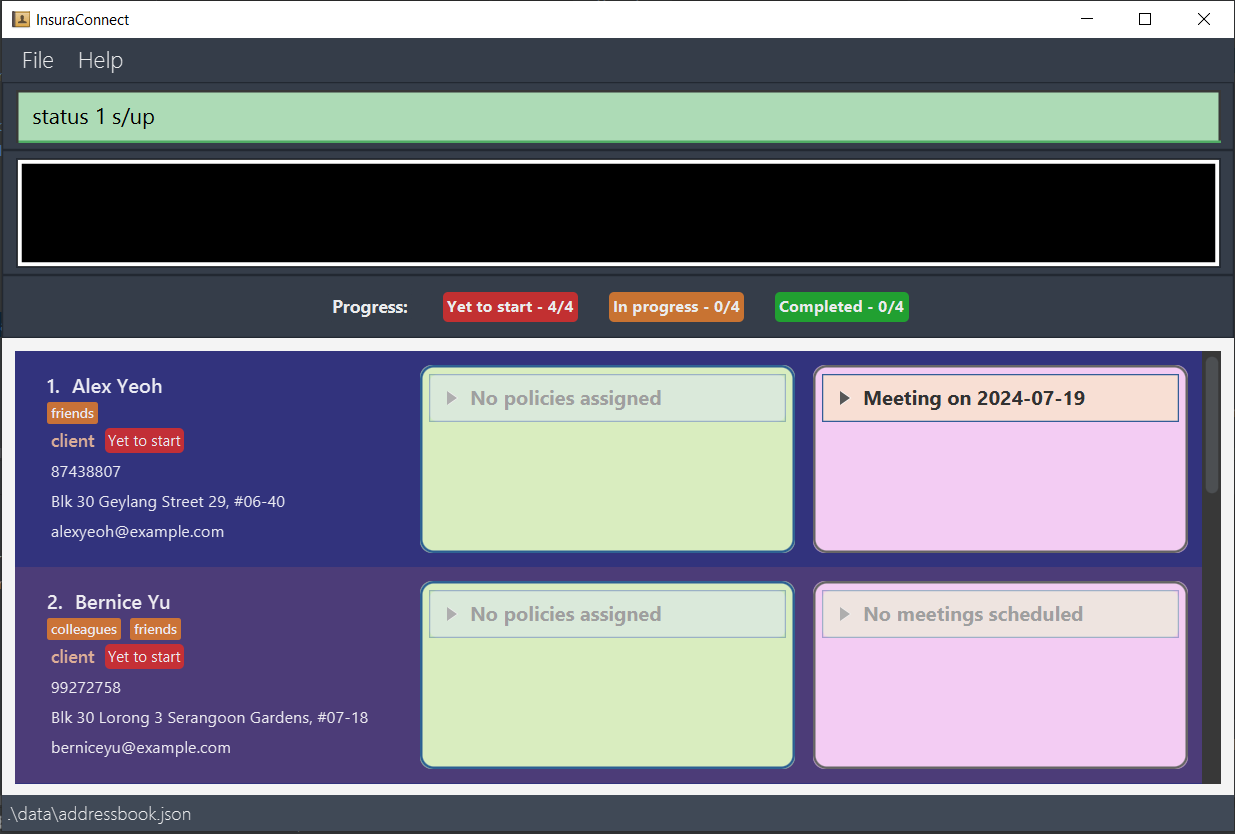
Fig 22: Before increasing the 1st client's status
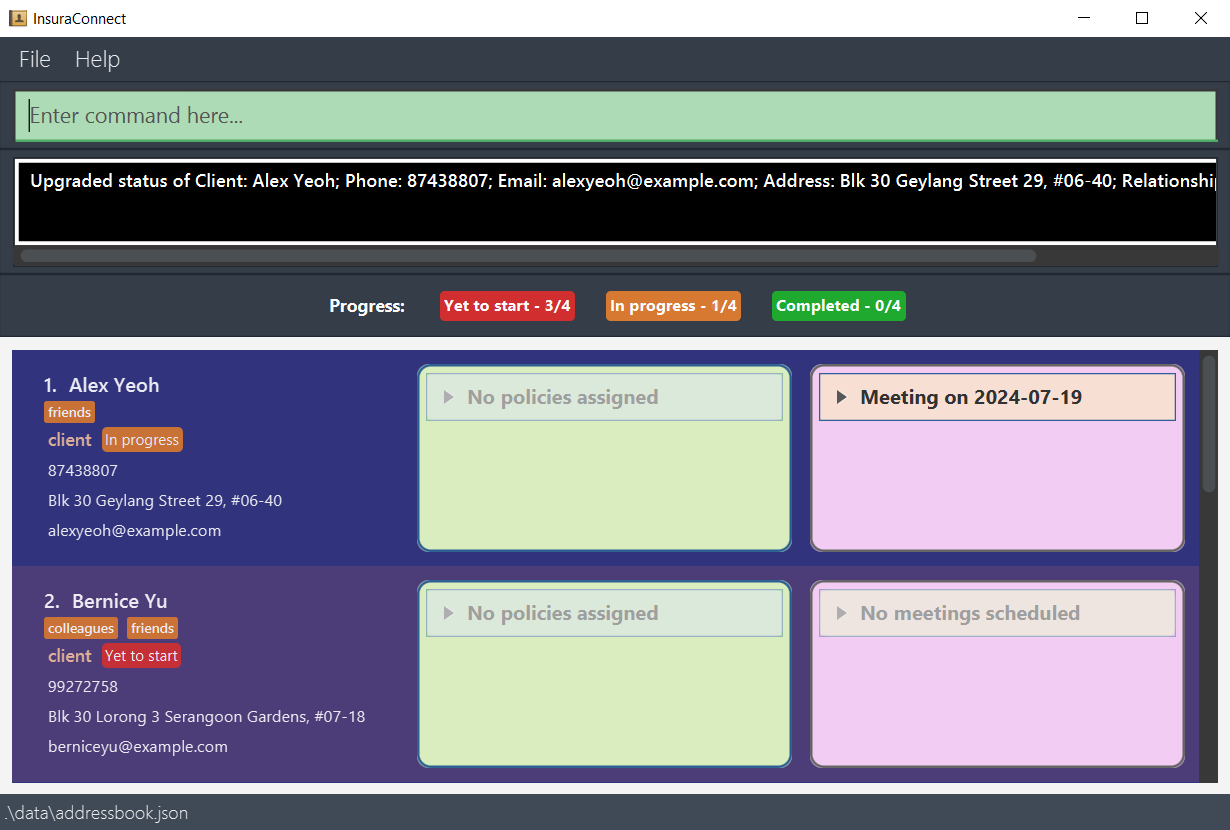
Fig 23: After increasing the 1st client's status
Undoing a command: undo
Undoes a previous command.
Format: undo
- Only undoes commands that made changes to InsuraConnect
Examples:
add n/Adam Ibnu p/11111111 e/Adam@gmail.com a/Sembawang road blk 509c #02-25 r/client t/friend
The following images show the InsuraConnect UI after executing the command above.
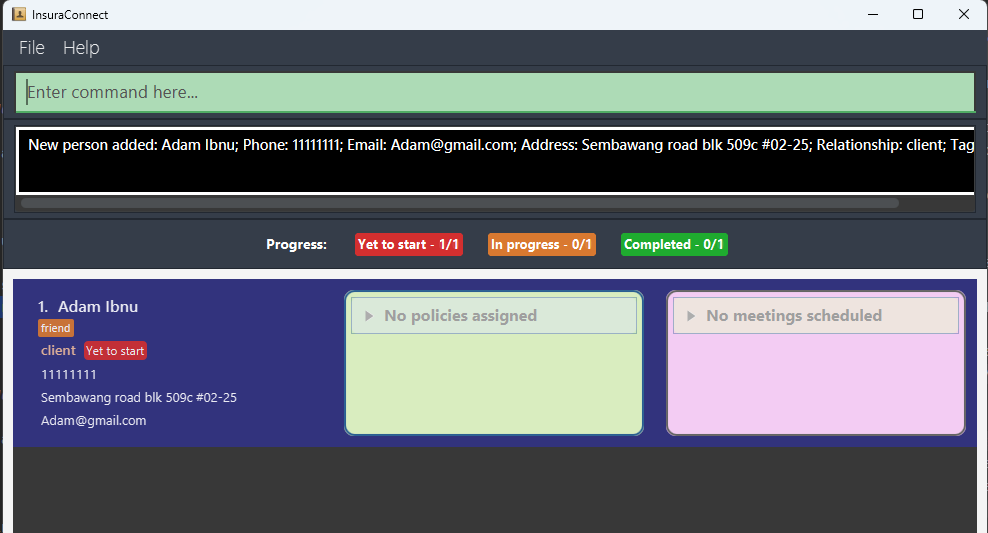
Fig 24: Newly added Adam contact
- The previous add command is followed by
undowhich undoes the previous command, removing the newly added person as shown below.
The following images show the InsuraConnect UI after executing the command undo from Fig 24.
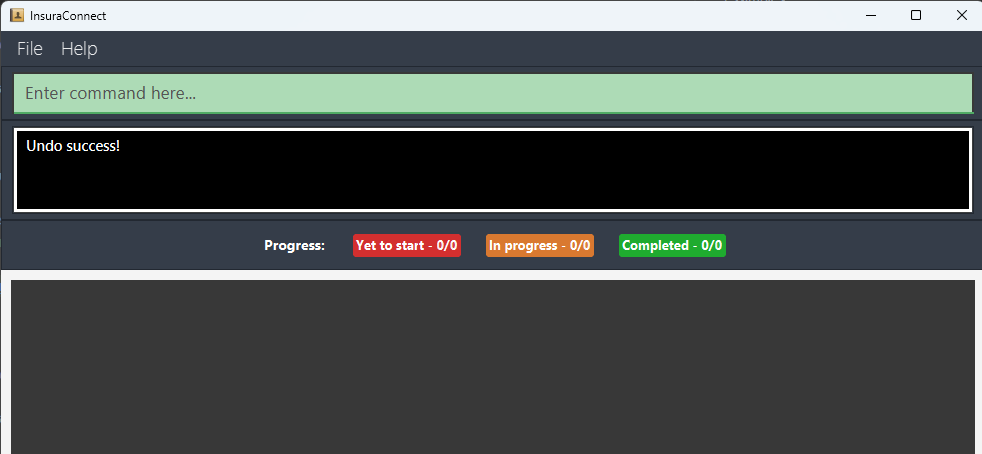
Fig 25: Undo removing the Adam contact
Redoing a command: redo
Redoes a previous undid command
Format: redo
- Requires a successful prior undo command to redo
Examples:
- This example performs redo after the success undo in the above section Undo
- Executing redo reapplies the actions that were previously undone which in this example is adding back Adam in the figure below and a successful redo will show a corresponding successful message as well.
The following images show the InsuraConnect UI after executing the command redo from Fig 25.
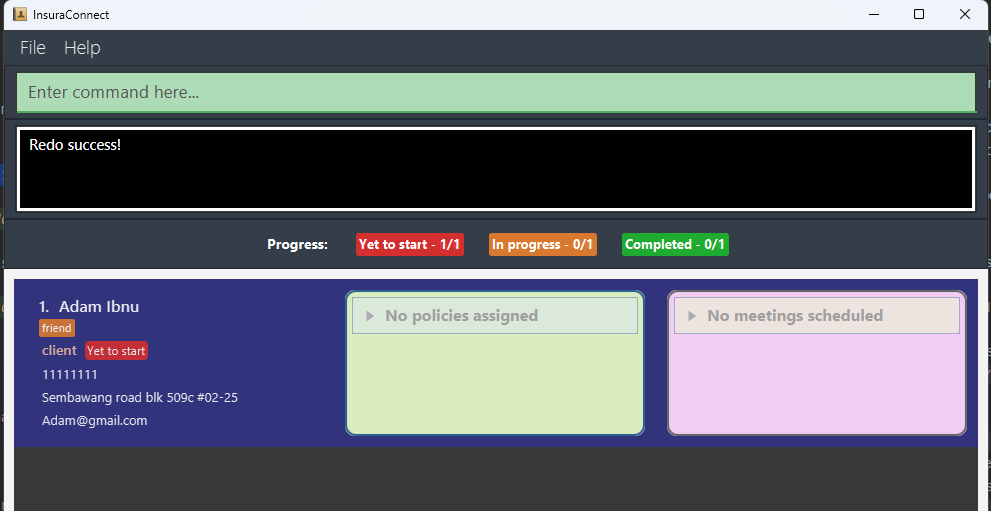
Fig 26: Redo adding back Adam
Clearing all entries : clear
Clears all entries from InsuraConnect.
Format: clear
Exiting the program : exit
Exits the program.
Format: exit
Saving the data
InsuraConnect data are saved in the hard disk automatically after any command that changes the data. There is no need to save manually.
Editing the data file
InsuraConnect data are saved automatically as a JSON file [JAR file location]/data/addressbook.json. Advanced users are welcome to update data directly by editing that data file.
Caution:
If your changes to the data file makes its format invalid, InsuraConnect will discard all data and start with an empty data file at the next run. Hence, it is recommended to take a backup of the file before editing it.
Furthermore, certain edits can cause InsuraConnect to behave in unexpected ways (e.g., if a value entered is outside the acceptable range). Therefore, edit the data file only if you are confident that you can update it correctly.
FAQ
Q: How do I transfer my data to another Computer?
A: Install the app in the other computer and overwrite the empty data file it creates with the file that contains the data of your previous InsuraConnect home folder.
Q: Can I access InsuraConnect from multiple devices?
A: Currently, InsuraConnect is designed to be installed and used on a single computer. However, we are exploring options for multi-device access in future updates.
Q: Is InsuraConnect compatible with all operating systems?
A: InsuraConnect is optimized for Windows, macOS, and Linux operating systems. Ensure your device meets the minimum system requirements for seamless performance.
Q: Can I import existing client data into InsuraConnect?
A: Currently, there is no direct import feature within InsuraConnect. However, you can manually input your client data using the add command or directly edit the JSON data file if you have a large dataset. We are considering adding import functionality in future updates.
Q: Is my data secure within InsuraConnect?
A: InsuraConnect prioritizes data security and confidentiality. All client data is stored locally on your computer in a JSON file and is not transmitted over the internet. However, it's advisable to take regular backups of your data to prevent loss in case of unforeseen circumstances.
Known issues
- When using multiple screens, if you move the application to a secondary screen, and later switch to using only the primary screen, the GUI will open off-screen. The remedy is to delete the
preferences.jsonfile created by the application before running the application again. - When scrolling through Meetings and Policy Accordion, if you scroll too quickly, the cells take some time to render and display the required information.
- After using find command, use
listto list all tasks so that all operations are done on the correct index number. The filtered list doesn't revert back when doing next command, so user has to manually enterlistto avoid any discrepancies.
Glossary
- Meeting: A scheduled interaction between insurance agents and clients or partners to discuss insurance products, coverage options, claims, or other related matters.
- Policy: A formal contract or agreement between an insurance provider and a client specifying the terms, conditions, coverage, and obligations related to an insurance product or service.
- Client: An individual or entity that holds an insurance policy and is entitled to the benefits and coverage outlined in the policy.
- Partner: An individual who is a colleague or another insurance agent that the user is in collaboration with.
- Policy Management: The process of administering insurance policies, including issuing new policies, updating existing policies, processing endorsements, and handling policy renewals and cancellations.
- UI (User Interface): The graphical interface provided by InsuraConnect for users to interact with the system, access features, view information, and perform tasks related to insurance activities.
- Command: A specific instruction or action initiated by a user within InsuraConnect to trigger a particular function, operation, or task, such as scheduling a meeting, processing a policy update, or generating a report.
- Fig (Figure): A reference to a visual representation or illustration within InsuraConnect documentation, often used to depict UI screens, workflow diagrams, or data charts related to insurance processes or functionalities.
Supported prefixes
| Name of prefix | Prefix in command | Description |
|---|---|---|
| Name | n/ | The name of the person |
| Phone Number | p/ | The phone number of the person |
| Email Address | e/ | The email address of the person |
| Address | a/ | The address of the person |
| Relationship | r/ | The relationship of the person |
| Tag | t/ | The tag of the person |
| Policy Name | po/ | The name of the policy |
| Policy Index | pi/ | The index of the policy |
| Policy Expiry Date | ed/ | The expiry date of the policy |
| Policy Premium | pm/ | The premium of the policy |
| Meeting Date | md/ | The date of the meeting |
| Meeting Time | mt/ | The time of the meeting |
| Meeting Duration | mdur/ | The duration of the meeting |
Meeting Agenda (not editable through reschedule) | ma/ | The agenda of the meeting |
| Meeting Notes | mn/ | The notes of the meeting |
| Meeting Index | mi/ | The index in the meeting list |
| Client status direction | s/ | The direction of status change |
Command summary
| Action | Format, Examples |
|---|---|
| Help | help |
| Add | add n/NAME p/PHONE_NUMBER e/EMAIL a/ADDRESS r/RELATIONSHIP [t/TAG]… e.g., add n/James Ho p/22224444 e/jamesho@example.com a/123, Clementi Rd, 1234665 r/client t/friend |
| List | list |
| Edit | edit INDEX [n/NAME] [p/PHONE_NUMBER] [e/EMAIL] [a/ADDRESS] [t/TAG]…e.g., edit 2 n/James Lee e/jameslee@example.com |
| Find | find [n/NAME]... [r/RELATIONSHIP]... [t/TAG]... [po/POLICY]... e.g., find n/John n/Alex r/client |
| Delete | delete INDEXe.g., delete 3 |
| Add Policy | policy INDEX po/POLICY_NAME [ed/EXPIRY_DATE] [pm/PREMIUM] e.g., policy 1 po/Policy ABC ed/01-01-2025 |
| Edit Policy | policy INDEX pi/POLICY_INDEX po/POLICY_NAME [ed/EXPIRY_DATE] [pm/PREMIUM] e.g., policy 1 pi/2 po/Policy ABC pm/1000 |
| Delete Policy | policy INDEX pi/POLICY_INDEX po/ e.g., policy 2 pi/2 po/ |
| Schedule Meeting | schedule INDEX md/DATE mt/TIME mdur/DURATION ma/AGENDA [mn/NOTES] e.g., schedule 1 md/2024-05-05 mt/09:00 mdur/60 ma/Discuss health policy mn/Bring laptop |
| Reschedule Meeting | reschedule INDEX mi/MEETING_INDEX md/DATE mt/TIME e.g., reschedule 1 mi/1 md/2024-07-07 mt/11:00 |
| Cancel Meeting | cancel INDEX mi/MEETING_INDEX e.g., cancel 1 mi/1 |
| Change Client Status | status INDEX s/DIRECTION e.g., status 1 s/up |
| Undo | undo |
| Redo | redo |
| Clear | clear |
| Exit | exit |